
The Submittals Module is used to track and revise all Submittals for the project.
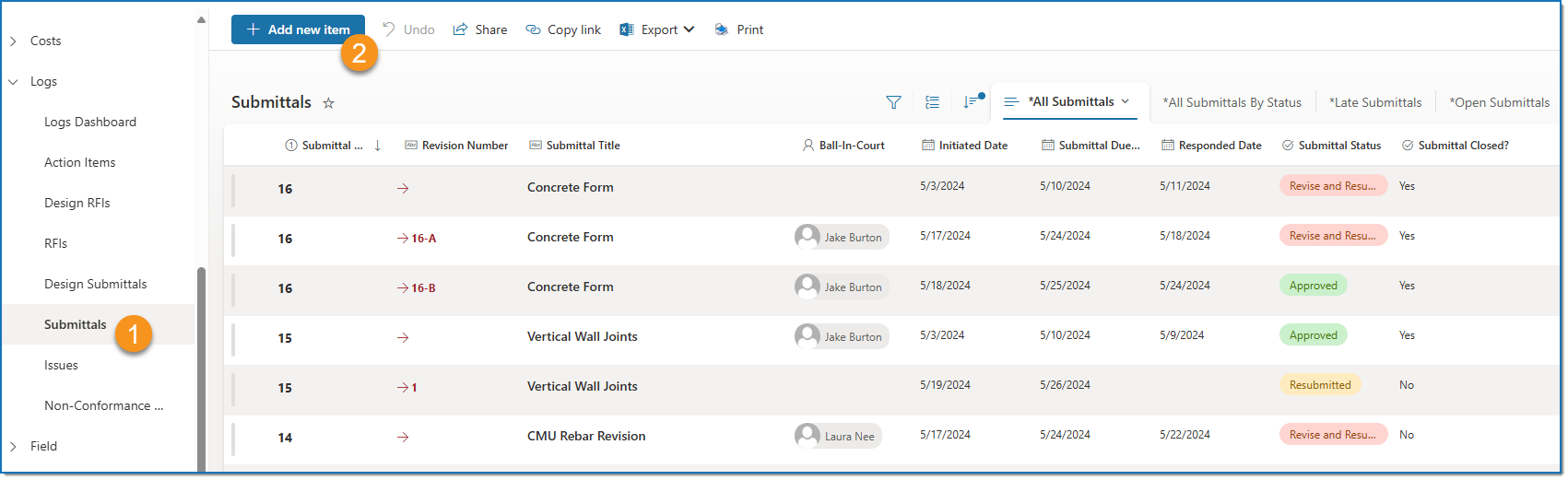
- Click Submittals. This link usually appears in the navgiation bar on the left side of the screen on the project homepage, under the Logs header.
Note:
Submittals can be reviewed with several preset views. For more detail on views, please see Creating a New View.
- Click New at the top of the page to create a new Submittal, then complete the following sections.
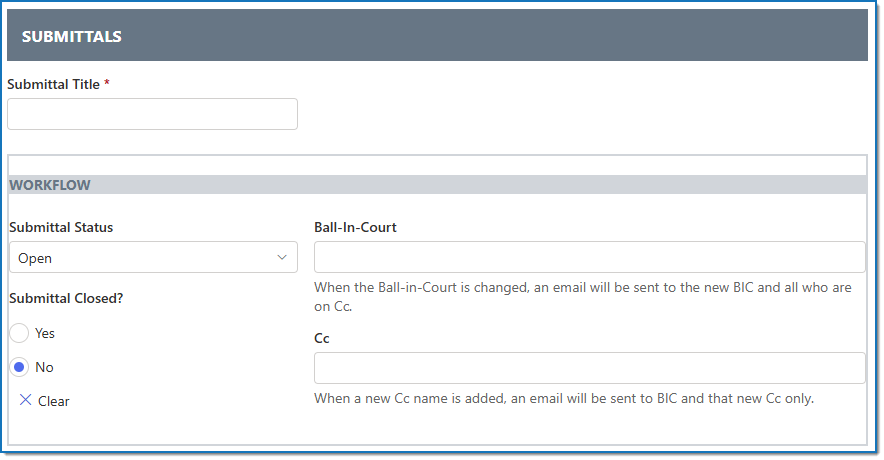
Note:
- Any field with an asterisk (*) is a required field and must be entered.
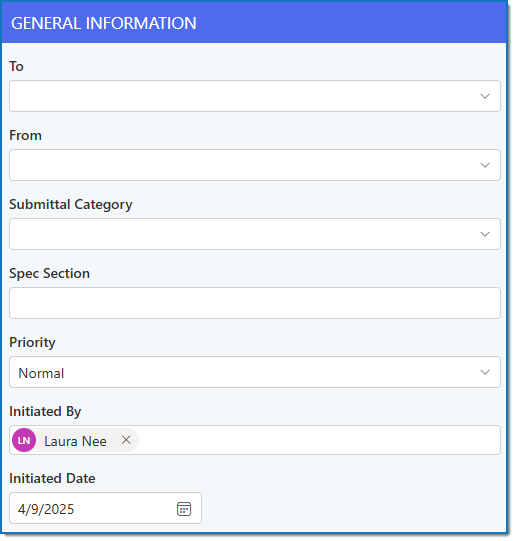
- For more information on the Ball-In-Court and Cc fields, see Ball-in-Court and Cc Notifications. - Enter General Information.
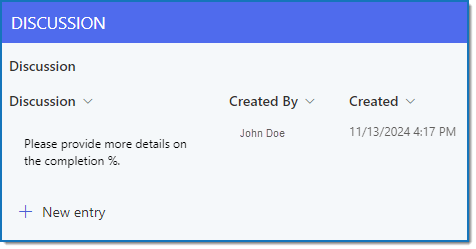
- Enter Discussion items. Each discussion entry will note the user's name and timestamp.
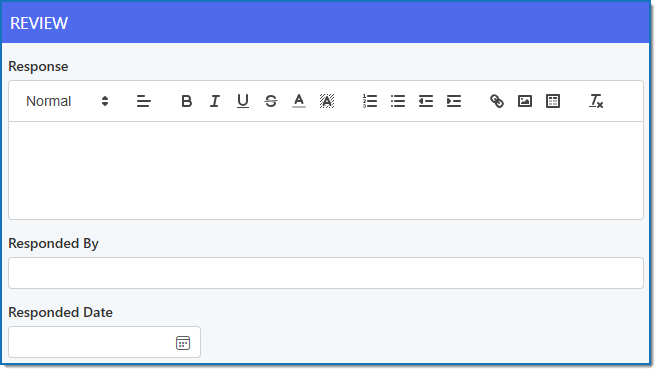
- Use the Review section to respond to the Submittal.
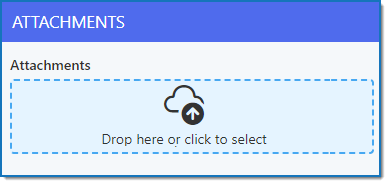
- Add or view relevant Attachments. For more details on attachments, see Attaching Files in VPO.
- When complete, click Save and Close at the bottom of the page.
- To create a new Revision:
a. Click to select the Submittal to revise.
b. Click Create Revision in the command bar.
c. The fields to be copied appear in the pop-up window.
d. Click Confirm.
e. The new Revision form will open with the copied values. Follow steps 1-7.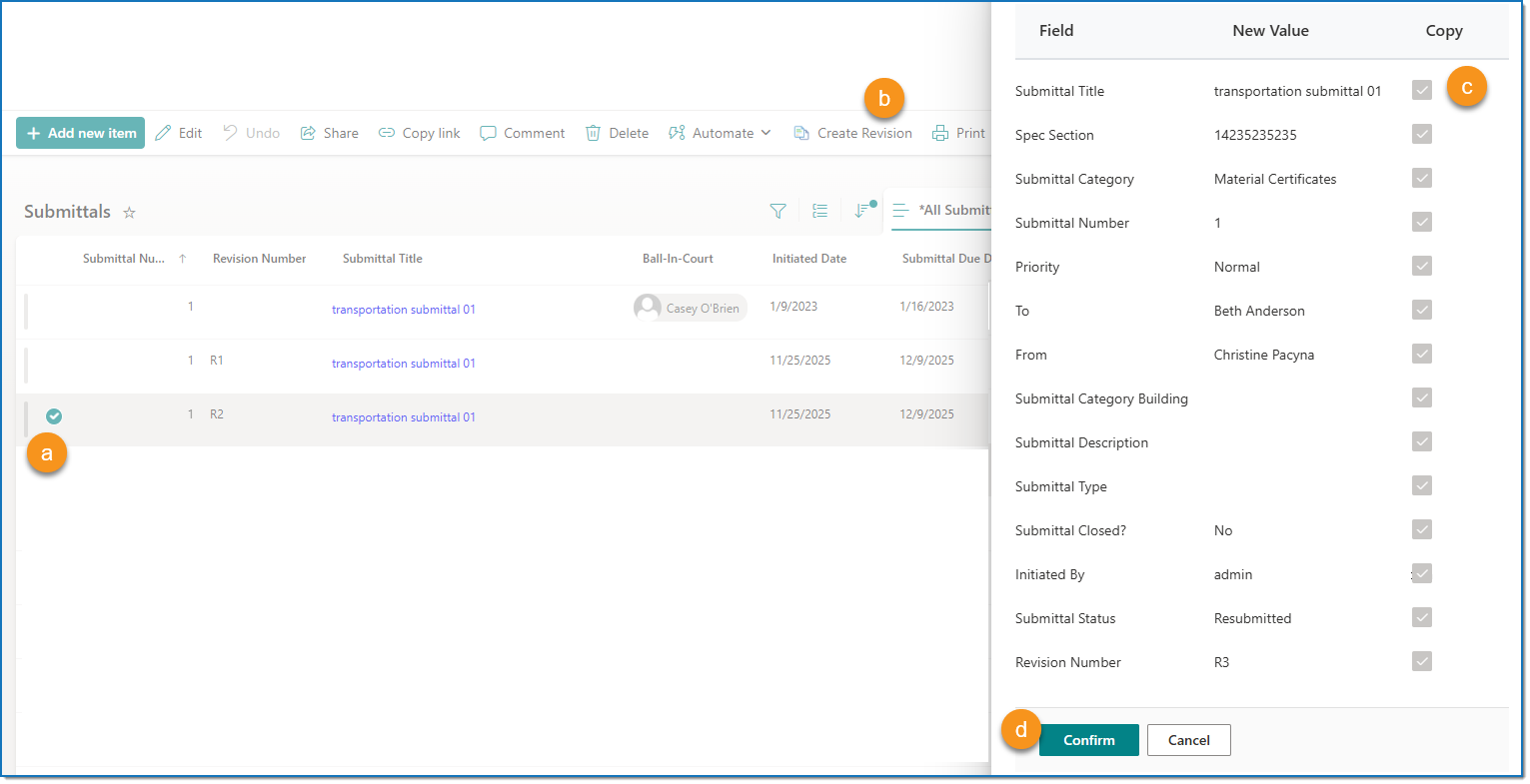
Notes:
- The Initiated Date will default to the current date.
- The Ball-In-Court, CC, Discussion, and Review fields will be blank as they are tracked separately for each Revision.
- On the original Submittal, the Submittal Closed? field will be set to 'Yes.'
- The Revision will receive the status of Resubmitted, and a Revision Number in the format "R#."